
Setup and member import · included in every plan
Switching to e-MasterClub: setup and data migration step by step
From the export of your previous software to the first booking: guided setup, a member import you can check and undo, and members who confirm their own data.
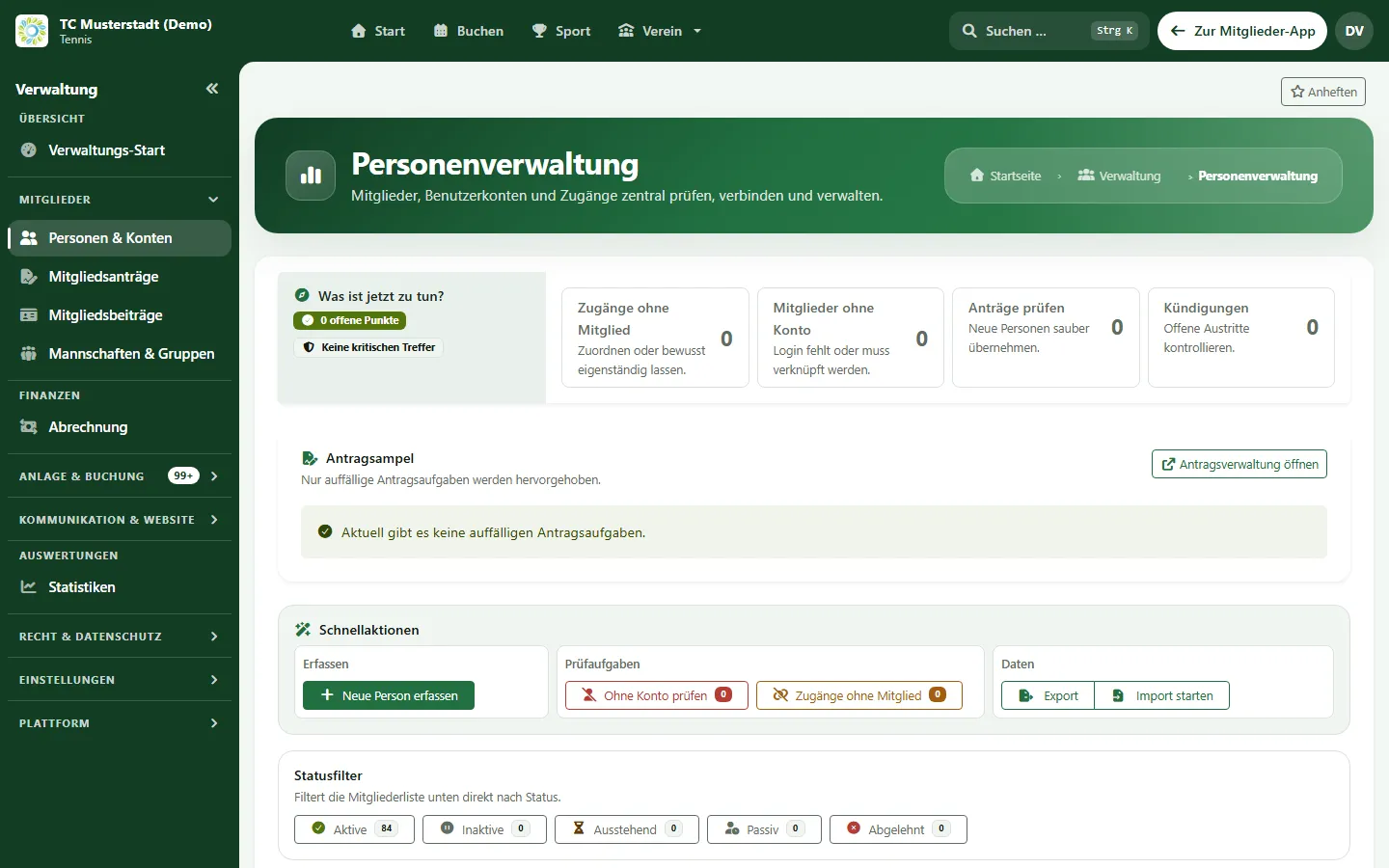
- Import from CSV or Excel with a check report
- Fee codes of the previous system mapped once
- Undo a completed import
Processes, permissions, and rules in one interface
How does a club switch to e-MasterClub?
A club switches to e-MasterClub in six steps: a demo with its own rules, the guided setup, creating the fees, importing the member list from a CSV or Excel export, letting members confirm their data, and inviting them to the club app. The import shows a check report before saving and can be undone, and fee codes of the previous system are mapped once. If the club prefers, e-MasterClub carries out the data migration as a separately quoted service.
Limits: no direct connection to individual previous programs; the import uses their file export. AI suggestions for the mapping only with the AI assistant (in Pro Plus).
Six steps from the old list to the first booking
Each step can be checked before the next one starts.
1. Demo with your rules
We go through your booking rules, membership types and fees together and note what has to be set up.
2. Guided setup
A setup wizard leads through the basic settings of the club in seven steps, with templates for common setups.
3. Create fees
The fee assistant creates the fee structure from a template or an existing file; AI help is optional.
4. Import members
Upload the CSV or Excel export, assign the columns, confirm the fee codes and check the report before saving.
5. Members check their data
Members are invited and confirm or correct their own data, so the office does not chase every phone number.
6. Go live
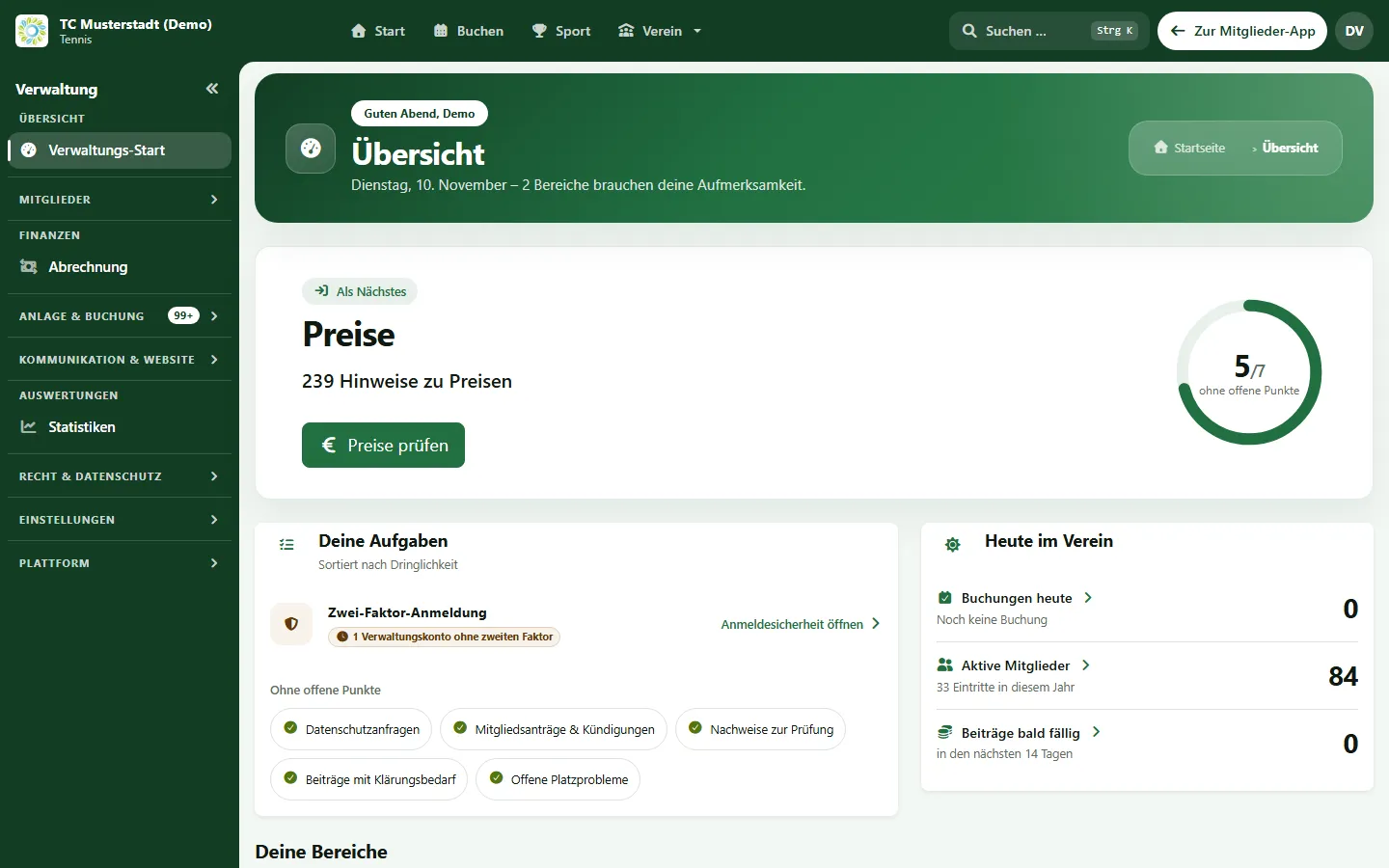
Members install the club app, the board sees open tasks on the administration start page.
What the club prepares
Four documents make the switch noticeably faster.
Member export
A current export of the member list as CSV or Excel, ideally with membership type, date of joining and bank details.
Fee schedule
The valid fee schedule and the fee codes used in the previous system, so they can be mapped once.
Booking rules
Advance booking, playing times, guest fees and blocked times as they apply today, also if they only exist on paper.
Roles
Who manages members, fees, courts, training and news, so everybody gets their own access instead of a shared login.
Planning the switch independently of a provider? The guide switching club software covers export, clean-up and a short parallel run, and the digitization checklist helps clubs that start from spreadsheets. Imported members land in membership management, fees in club billing.
Frequently asked questions about switching
Direct answers about data, errors and effort.
Members with contact details and memberships, as well as bank details and SEPA mandates after an explicit confirmation, are imported from a CSV or Excel file, for example the export of your previous club software. Fee codes of the previous system are mapped to the new fees during the import. There is no direct connection to individual previous programs; the file export is what counts.
Before anything is saved, the import shows a check report with missing or conflicting values. You correct the file or the mapping and start again. A completed import can be undone, and recurring file formats can be saved as an import profile.
Yes, as a separately quoted service. We look at your export together, estimate the effort in advance and include it in your offer. Many clubs import the file themselves with the import assistant.
It depends mainly on how many rules and how much member data are moved. The setup starts in the demo with your booking rules, membership types and fee structure; after that you invite the members.
The guided setup and the member import are included in every plan. AI suggestions for column mapping and fee codes additionally require the AI assistant (in Pro Plus).
Next step
Bring your member export to the demo
We look at your export and your fee schedule together and tell you which steps your club needs.